Showing posts with label internet. Show all posts

Thursday, 12 May 2016

Inshorts News in 60 words

Inshorts : On-the-go News


Inshorts helps you keep updated with news in your busy schedule. Most of us don't like to go through long articles on websites and newspapers to keep up with the daily national and international happenings. Inshorts brings all the news to you in just 60 words. 


The content is curated by writers who downsize the long and lengthy articles from across the web into 60 words while keeping in the important facts. The sources include a variety of news publishing websites and media websites such as YouTube. The stories get updated frequently to keep you up to speed. The articles also mentions the source of the content which can be navigated to if you want to read the full article. The link opens as a webpage in-app


You get to chose your language as Hindi or English which can be changed from the settings menu anytime. The articles are also divided into various categories that can be browsed through the side menu. The app also tells how many of the articles are still unread.


Inshorts is best suited for people catching up on news on their commute or during short breaks between work.

Download Inshort for Android
Download Inshort for iOS

Sunday, 1 March 2015

Monitor your Internet Speed on your mobile

Today we spend most of our time on Internet through our smartphones. The developing technology has brought about various advantages to using Internet on the smartohones. But the Internet provider technology is still far behind on the account of speed. How many times have we wondered why the web page is not loading on our android phone browser. Now here is an app that would help us all a lot in monitoring the speed of Internet.

           
So Internet Speed Meter is an app that displays the download and upload speed for WiFi or mobile networks you are currently connected to. The app also helps to track usage on WiFi and mobile network.

You can constantly monitor the data speed by the icon on the top bar of the phone. When you pull down the notification panel it displays the data usage for mobile and WiFi network.

This is a very helpful and light app that can be used with your android phone.. So be sure to give it a try.

Internet Speed Meter

Friday, 30 May 2014

MakkhiChoose: An easy way to Shop Online

MakkhiChoose: Shopping Tool

We all have been shopping on-line for a time now. But On-line shopping has lacked an easy way to compare prices on various e-commerce site altogether. It becomes very hectic when searching for the price of same product on various E-commerce websites. And when you fail, when you see the product you just bought cheaper on some other site its really disappointing isn't it?


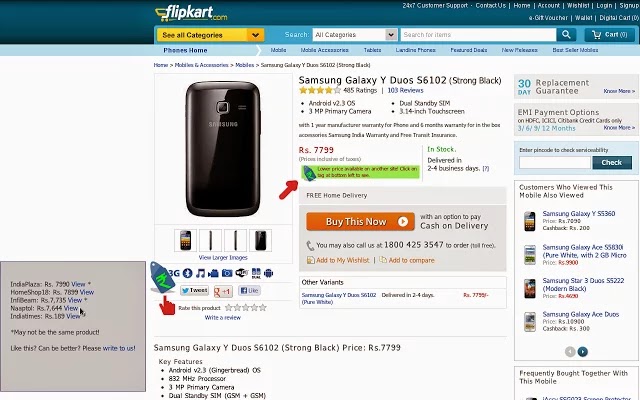
So, here is some new and innovative plugin designed to help the on-line shoppers. MakkhiChoose is plugin made for your Google Chrome browser. It gets you the price of the product you are looking for on a E-commerce site from all the other E-commerce sites for you to compare. 


How it Works

The working is simple and quite easy. You just need to install the plugin on the Google Chrome or Mozilla browser, whichever  you are using. 


Now, whenever you are viewing a product on an E-commerce site like Flipkart, IndiaTimes etc. , this plugin searches for the same product in all other sites and retrieves the price. You can view the prices simply by clicking on the tag rupee sign at the left side of your webpage. And click it again to hide. Pretty slick huh?


You can find MakhkhiChoose here for Chrome and here for Mozilla

Its a really helpful plugin for the people who do most of their shopping on-line. So go ahead and try it.

Post your queries on the comments below.


Sunday, 11 May 2014

Internet Browsers: Android

Internet Browsers: Android


We all need the internet for almost every purpose of our lives. Be it from booking tickets to searching for meaning of a word, Internet keeps you posted about everything happening around you. Therefore we also need a good internet browser to access the information. Now most of us are already using apps for most of the things on our smart phones but for some things browsers are still needed. So here is a line up of some browsers for your android device. 

1. Chrome Browser-Google

Already famous among desktop browsers, Google launched its browser for android devices. Sync your personalised chrome experience from your computer to bring it with you anywhere you go. 
Pros: 
The browser is fast. 
Able to sync with your Google account 
Supports HTML5. 
Cons: 
It takes a lot of memory 
No native support for Adobe Flash. 
Only available for 4.0 android and above. 

Download


2. Mozilla Firefox

Firefox for android puts power of the web in your hands. It is fast, easy to use, & customization with the latest security and  privacy features to help you stay safe on the internet. Provides features for extensive security settings, add-ons, and features like Do Not Track. 
Pros: 
List of available add-ons. 
Adobe flash player support. 
Can sync with the PC Mozilla browser. 
Cons: 
Can be slow and and high memory usage. 
Sometimes force-closes. 

Download


3. Opera for Android

Fast, smooth and easy to use when browsing on atablet or a smartphone. Ideal browser to use on slow network connections. It is designed to support low end android devices. 
Pros: 
Saves bandwidth when turbo mode is on. 
Provides smooth and fast browsing experience. 
Supports text wrapping. 
Cons: 
I cant find..u can report if found. 

Download


4. UC Browser

This browser is fast, loads quickly and add a lot of useful features. It has everything you expect from a desktop browser. You can move to full screen browsing with the single button touch. 
Pros: 
Decent interface. 
Provides night theme. 
Cons: 
Gets stuck sometimes. 

Download


5. Dolphin Browser

Dolphin browser is one of the best browser available on the play store. It can perform quite a number of tricks including gesture control, voice control, sidebars, quick tab switching and add-ons support. 
Pros: 
RAM friendly. 
Gesture and voice controls. 
Provides full screen browsing option. 
Cons: 
No support for Adobe Flash. 

Wednesday, 15 January 2014

Some Basic Tips on How to Safely Browse the Internet

As we know today the internet has not just evolved into something that is really helping hundreds of millions of people in their work and also helping in driving the economy,but to all this there also lies the sectors of internet which can become a nightmare to someone.
Most of the simplest form of these is a virus and malwares.Today these viruses and malwares are spreading at a much higher speed than ever,it is because of higher reach of internet availability and lack on information among the users on how to safely browse the internet.
I have personally been a victim of viruses in my early days when I was learning to use the internet,after which I learnt and found some very basic methods to browse the internet without getting infected.
Being in college I have seen and dealt with a lot of my colleagues bringing their computers to me for repair and treatment of viruses,probably they shouldn't if they just follow some basic instructions on how to browse the internet safely.

The methods that now I'm gonna tell are some very basic things which most people might know but they ignore it and are applicable only to a PC.


1. Install an efficient antivirus with a firewall system

An efficient antivirus will prevent most of the attacks coming in from any rogue websites by filtering them and even preventing access to them.
I would recommend using ESET Smart Security Antivirus,I have been using it since last 7 years and haven't had a virus breach in my system since then.

2. Removing useless toolbars from your browsers


This can be simply done by opening up the control panel,then going to add or remove program

3. Using AdBlock AddOns for your browser(mozilla/chrome)

This is one of the most efficient methods to prevent clicking on any unwanted links which might lead to getting infected by malware or leading to a phishing site which is a replica of a very common known site like facebook but isn't actually related to it,as soon as the link is clicked the user is forwarded to a page leading to that website's fake page where if the user inputs his credentials will lead himself to getting easily hacked and leaking of some every information from the user's system.
To install this very AddOn goto bit.ly/1bia3G6 then click add to chrome

You can see the difference here in the below image
The similar is applicable for mozilla users in the very same way.

4. Always be vary of the link you're clicking on

You must always bring your mouse cursor over the link you want to open and then you can see the full link of the site you will be directed to
Such links as you can see above are to be avoided and doing so will keep your system secured to a great extent.

5. Knowledge of websites

Most people want to download music,softwares and movies.But what most people do wrong is blindly go on browsing the internet and reaching malwares websites in search of finding quick links to download.
I'm going to list some websites that have been deemed to be secure and trustworthy.

Softwares:


Music and Movies


In case of torrent and warez sites(for knowledge purpose only)


Downloading from the above sites with care,whatever you are about to download firstly know about them on the internet by googling it down.Most people are scammed by downloading fake downloading which occurs when people upload fake downloadable content loaded with viruses,people out of their curiosity and eagerness to download it and suffer the consequences.
Happy browsing to all,if there is anything you might wanna ask me about or any tutorials then please leave a comment,I'll be happy to help you all.
Thank you.
Regards fuXu.

Sunday, 6 October 2013

Desktop Android Manager: Mobogenie

Desktop Android Manager: Mobogenie

We all love our smartphones. Smartphones today hold almost all of the data we need in our lives and they also provide entertainment and information on the go. But sometimes we wish that we could have a Desktop Manager so that we could just send messages from our phone while working on the PC. The data charges today are also high and we don't want to waste a chunk of that in downloading it over the air. Wish you could download your apps and games from the internet connection at home itself? Well here is your complete Android Solution: Mobogenie.

Mobogenie is a free software that lets you manage and control your Android Phone from your PC. You just need to Check the USB Debugging mode in your phone settings and connect your phone to your Personal Computer and then You can send messages , install apps ad games, download videos directly to your phone etc etc. The List goes on. Here is a quick look to its features.

Click here to Download


1. Manage Installed Apps

Mobogenie allows you to manage the already installed apps and games on your android device. This software also allows you to update the applications on your device or install a newer version. 


2. Send Messages directly from PC

You can also send messages from your PC. Mobogenie software displays the conversation and all the messages on the window and you can type in the messages and send message.

3. Manage Contacts

You can add, delete or edit a contact of your Andoid device from this software.

4. Install Apps and Games from Play Store

Mobogenie allows you to install application and games from the store. A gallery of applications and games are displayed and you can also search for a particular app in the gallery and install it directly to your phone from PC.


5. Create and Restore Backup

We all would panic if the important data on our smartphones are lost. Mobogenie allows you to back up the data on your android device. Not only messages and contacts but also applications , pictures and Videos so whenever we reset our phone we dont need to install all the apps once again.


6. Download wallpapers and ringtones on Your Device

Mobogenie provides us with a gallery of latest wallpapers and ringtones with various categories to chose from and directly get it on your Android Device.

7. Install Collections

Mobogenie also dislpays a collection of apps such as Necessary Apps, Apps for Music Lovers, Apps for Students and Apps for Photographers etc. That you can install on your Android Device with just one click.


So here are some features of Mobogenie software for managing your Android Device and it is the best out there so give it a try!

Saturday, 5 October 2013

Blocking Irritating Advertisements online from your Browser

Blocking Irritating Advertisements Online from Your Browser

The most irritating thing while surfing the net are those surprise pop up ads. I just hate hit. No we dont want to play poker, or register to some stupid site. But these advertisements wont stop coming. Even on Youtube when you want to watch the trailer of  a movie they make you wait for 5 seconds. This is totally injustice!!!!

So this is an easy an neat trick to just block all those irritating ads. It is actually available for free but most of us arent aware. The thing i am talking about is Ad Block Plus plugin for your browser. Now most of us use Google Chrome Browser( Obviously because its fastest!). So these are easy steps to get the Ad Block Plus Plugin for your browser.

Step 1: Open your Chrome browser and Go to Extensions

Open your Chrome browser and click on options on the top right corner. Now click on tools and then Extensions.


Step 2: Go to Chrome Extension Store

Click on Get More Extensions


Step 3: Search Ad Block Plus

Search for Ad Block Plus in the Chrome Store and click to view.


Step 4: Install extension

Ad Block Plus is a free extension. Just click on " + Free". Click add on the alert box that comes next. For a moment it will check and download the extension.The Extension will be Automatically Installed to your browser and you'll see an ABP icon on your address bar. Restart the browser and enjoy ad-free surfing.


This Plugin is mostly available for all the major browsers like Mozilla Firefox and Opera. You just need to follow the same steps in your own browser.

Thanks Abhishek Baurai for the tip!