Showing posts with label windows. Show all posts

Tuesday, 14 February 2017

Stop Using Google Chrome!

Google Chrome is the most popular browser available in the market right now and that is evident by its huge user base that only seems to be rising. So why not use it? Read on..


Google Chrome is the most stable of all the browsers and the large number of extensions available can truly give you a personalized experience. But all of this comes at a cost. Google Chrome is also one of the top resource user on your machine. It eats up a huge chunk of RAM while using, so for devices with limited RAMs the performance is not great. In fact it would be advisable to use an alternative. In most of the benchmark tests the performance of Google Chrome is not comparable to its alternatives.

Google has built Chrome to be extendable and you can easily sign in to your Google account to sync your bookmarks, history and saved passwords on any number of your devices. Though it adds a little touch of convenience, it also raises some issues with Google tracking all your browsing data.

So What's the Alternative?

There are many alternate browsers available in the market like Mozilla Firefox, Microsoft Edge that match up to the potential of Google Chrome. 


But I would recommend using the Opera browser for some of its many add on features.

  • Opera has an in built Ad-Block so you don't need to install any extensions to avoid those annoying ads all over Facebook and YouTube.
  • It also contains a turbo mode for slow connections that essentially lowers the data usage in loading web pages and is recommended if you're using a mobile connection.
  • The new Opera browser also comes in with free VPN that can be used to access content restricted by your ISP.
  • The browser also comes in with a battery saver mode that promises to increase your battery life while browsing.
  • Opera has a clean UI without any clutter and also provides a huge number of extensions to personalize your experience.

Thursday, 9 February 2017

Stop Windows 10 automatic updates


For all of us who have been using Windows 10 home edition for a while might know the pain of Automatic updates running in the background every now and then.  This affects our browsing experience  as well as increasing the data usage of the network. 


So here is a quick and neat trick to stop automatic updates on Windows 10 . However this trick only works with WLAN networks and not for networks connected over Ethernet. So if you connect your laptop running Windows 10 via Wi-Fi this might be the solution for you.


  • Go into the network settings
  • Click on 'Manage Known Networks' and find your network. Click on the network to reveal properties.
  • Scroll down to find a switch for 'Metered Connection' and switch it ON.
  • And you're done.


You can use this trick for multiple networks from preventing automatic windows updates . This can be easily reversed if you want the automatic updates option back.  You can also check for updates manually and install them on the metered connection.

So you use this trick to save the precious data that you would rather use for downloading movies and TV Series. :P


Saturday, 5 July 2014

Location Manager App: Life 360 Family Locater

Life 360 Family Locater 

In today's world of smartphones it is hard to believe that there are still many situations where we are unable to reach our friends and family sometimes. We are worried about the safety of those in our family and our friends, and we sometimes need to know exactly where they are. To cater to these needs there are a lot of apps one can find in the app store, but we are going to talk about one of the most efficient app- Life 360 Family Locater.

Life 360 Family Locater provides a combination of features that one may require to locate, contact and send an emergency distress signal to anyone in there circle. The app introduces various circles that can be created by a user like Family Circle, Friend Circle etc. The user may add as many people he likes in these circles provided that they also have a smartphone with working gps. After the user has added his family or friends he can view the location of the people in his circle at any time and contact them using the app.


There are various features of this app that makes it stand out among others:

  • Find a Family or friends Location on a private map.
  • You can send and receive help signals from the members.
  • You can chat with the members in a group or privately.
  • You can add places that are often used and get alerts when a member reaches that place.
  • You can also track lost phone devices.


There are several others features in the app that are paid and only works for specific region. But all you need are the features listed above to ensure the safety of your loved ones. So head down to the store and get this app now and also inform your family and friends about this app.

IOS 

P.S: You can also check the location and other details of the members by logging in from the website from a browser(www.life360.com).

Friday, 30 May 2014

MakkhiChoose: An easy way to Shop Online

MakkhiChoose: Shopping Tool

We all have been shopping on-line for a time now. But On-line shopping has lacked an easy way to compare prices on various e-commerce site altogether. It becomes very hectic when searching for the price of same product on various E-commerce websites. And when you fail, when you see the product you just bought cheaper on some other site its really disappointing isn't it?


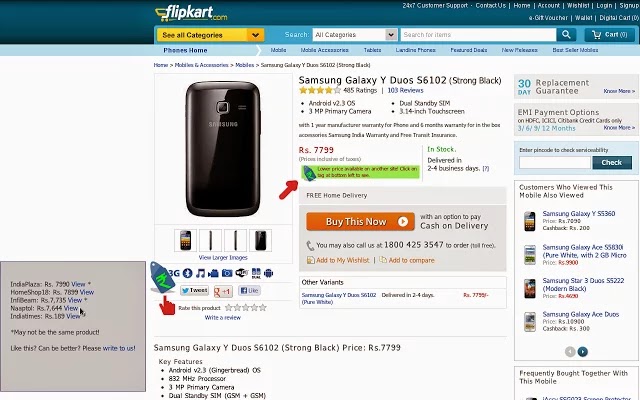
So, here is some new and innovative plugin designed to help the on-line shoppers. MakkhiChoose is plugin made for your Google Chrome browser. It gets you the price of the product you are looking for on a E-commerce site from all the other E-commerce sites for you to compare. 


How it Works

The working is simple and quite easy. You just need to install the plugin on the Google Chrome or Mozilla browser, whichever  you are using. 


Now, whenever you are viewing a product on an E-commerce site like Flipkart, IndiaTimes etc. , this plugin searches for the same product in all other sites and retrieves the price. You can view the prices simply by clicking on the tag rupee sign at the left side of your webpage. And click it again to hide. Pretty slick huh?


You can find MakhkhiChoose here for Chrome and here for Mozilla

Its a really helpful plugin for the people who do most of their shopping on-line. So go ahead and try it.

Post your queries on the comments below.


Saturday, 19 April 2014

Windows Phone 8.1 : Microsoft has finally done it!

Windows Phone 8.1 : Developers Preview( For everyone! )


Earlier this week on Monday Microsoft released its Windows Phone 8.1 Developers Preview. This was the answer to all the critics to the Windows Phone who complaint about things like a notification center, moving apps to SD card and lack of customization. 

You must all be very curious to try your hands on this new Developers release. Well, not going by its name the Developer Preview of the Windows Phone 8.1 is almost for everybody who can follow some easy steps. Lets begin. 


Step 1:

Click on this and sign in using the Microsoft account running on your Windows Phone 8 device. Then get your self registered by accepting the terms.

Step 2:

On your device download and install Preview For Developers App by Microsoft. You can also download the app from here. ( Also make sure that your device is running the GDR3 update or Lumia Black)

Step 3:

Now start the app and accept the terms. Sign into your Microsoft account and Enable Preview for Developers. 


Step 4:

Go check Phone Updates in settings you will find updates for your phone. There will be two updates first one is a small one and it helps the phone to install the larger update. The small update is of 5-10mb and the larger update is of  400-500mb. 


If you encounter any problem or have any queries leave it in the comments below. 

Saturday, 25 January 2014

Asphalt 8: Airborne

Asphalt 8: Airborne for Windows Phone, Windows 8 and Android

Asphalt 8 is another addition to the Asphalt series by Gameloft. By far Asphalt has already acquired a name for one of the best racing games across many platforms such as Android, IOS and Windows Phone. Later in November 2013, the game was also launched for Windows 8 PC and Tablets. The Game has recently slashed the pricing to free. 


Asphalt 8 is a fully featured racing game with cars from all the major brands and maps from all over the world. One of the most enjoyable features of game include the World series where you can race among various other opponents over internet. Asphalt 8 adds stunts and even bigger maps to its previous version.


There are 8 seasons in the game which include about 160 events. There are cars from Top licensed manufacturers and models such as Lamborghini Veneno, Bugatti Veyron, Ferrari FXX and Pagani Zonda R and many more.


You can also log in with your facebook account to compete and challenge your friends. Each record you create on every even is visible to your friends on facebook and you can create new records by beating your friends time. 

This game has changed my perspective about mobile games. It packs excellent graphics and if you are a racing game enthusiast this is a must have game in your collection.

Android: Download here

Windows Phone: Download here

Windows 8: Download here

Monday, 7 October 2013

How to Format Your System and Install Windows

Easy Steps on How to Format Your System and Install a new Copy of Windows

Formatting your system isn't has hard as it sounds. You don't need to run to a Computer Engineer to do it. In fact it is quite simple if you follow an easy set of steps. So here i am going to show you how to Format Your computer and also Install a new Copy of Windows on your system. The both actually go hand in hand and you just need to follow the Steps.

Step 1: Prepare Your System

A computer Format cleans up the data on your system drive(The drive on which you have the current Operating System installed), so it is recommended that you back up any kind of data that you have downloaded/saved on your system drive. The system drive also include User- documents, pictures, music and videos. So any kind of data on that drive will also be lost.

Step 2: Prepare a Bootable drive 

I have already shown you how to create a bootable USB drive for installing Windows. It is recommended that you also use a USB drive as it is much faster than any optical disc and hence takes less time in installing windows. In this tutorial i am showing you how to install Windows 8 on your system the same procedure is valid for any other version of Windows. 

For tutorial on how to create Bootable USB drive click here

Step 3: Changing Boot hardware priority

Insert your Bootable USB drive and open my computer, for a bootable USB drive you will see a icon different than the usual USB drive icon. Now Restart your system.

As soon as your system restarts press Del or F12 or F2(different for different systems). This will open up the BIOS screen of your system. 


Now navigate to Boot menu by using arrow keys. Here navigate down to Hardware Boot Priority and press Enter


Now select Boot Priority #1 and press Enter. A new screen will show you the options. Chose your USB drive as priority #1 and press escape to return to BIOS screen. Now navigate to Save and exit and Save changes and exit. After this your computer will restart


Step 4: Selecting Windows Version

After the computer restarts it will now load the setup from Your USB drive and the Windows OS installer will come up. Select the preferred language and click next. and then select Install now option.


After this you will need to select the version of Windows for installation. Select x86 for 32-bit system and x64 for 64-bit system and click next.


Accept the Microsoft Terms and conditions


Step 5: Where to install Windows

A screen will come up asking which type of installation you want. Click on Custom as here we are installing a new copy of Windows.


Now a screen with all Your drives will show up. Select the drive where you want to Install Windows( select the drive where your previous Operating System was installed). Now click On Drive Options


In the drive options click Format to erase all the data on the drive where you want to install the new Windows. You can also format all the drives from here if you want to clean up your whole system but this will clean your all data.


After the format is complete click Next to continue

Step 6: Installing Windows

Now the installation will begin. It will take up to 20-25 Min. and then Windows will restart. Now when your system is restarting take out your USB drive.


Step 7: Finalizing

The setup will restart several times after which you'll have the screen to personalize your PC. It will ask you for a name and settings. Just click on customize and select Don't Setup Windows Update.


Here are 7 easy steps by which you can format your system and install a fresh copy of Windows on your system. So  now you don't need to run to a computer engineer every time you want to format your system.
Suggestion and Queries are invited!

Sunday, 6 October 2013

Must Have Free Games on Windows Phone

Must Have Games on Windows Phone

With the growing app market on Windows Phone now also includes many Free and exclusive games that are must haves for all the windows phone lovers out there. These games include the xbox games and also games from some developers that are worth a look. 

1. Shuffle Party

Shuffle Party gives you the experienxe of shuffle board bowling on your windows phone. The game usually comes pre installed on most of the windows phone devices otherwise you can always download it from the market place. The game has various game modes and choices for choosing the shuffle table etc. The game's 3d environment and realistic game play gives it a thumbs up for a free game category.

You can download the game from here


2. Line Birds

An original ios hit, Line Birds is one of the most addictive games i have played on windows phone. The game sounds quite simple where you have to fly birds and keep them away from obstacles but is actually very hard onve you play advanced modes. there is also options of selecting various birds with different capabilities, but you'll have to unlock them by playing and covering more distance. 

You can Download the game here


3. Dredd vs Zombies

Dredd vs Zombies is one of the games that usually come paid because of the extra effort the developers put in. But its not its free and its just Awsome. with many different levels to play in this over the top zombie shooter game and choice of selection of guns and many different perks , it might just be one of the top rated games on the Windows Phone platform.

You can Download it from here


4. Naargh!!

Dont go on the name of the game. When you'll play the game the reaction will be just opposite. Naargh is a simple game that tests your  fast touch responses. You just have to hit all the red heads before the time runs up, but don't take it for too easy. You'll be astonished by its addictiveness of breaking your own high scores.

You can download it from here


5. Benji Bananas

Benji Bananas is available on windows phone now, and its simple and plain must have. With over 60 missions and 5 different environments this game finishes of he battery on my smartphone because of the continuous play.

You can download it from here


6. Six Guns

Yes Cowboy Shooting is on and it is free. Six Guns offers you the most thrilling experience of gaming on your smartphone. With over 40 singleplayer missions and also offering you multiplayer experience. It offers various game plays such as riding horses, taking out enemy waves and chasing down robbers. Though the game is large in size but its worth every mb of space on your smartphone

You can download it from here


7. Reaper

Enter into the world of the black swordsmen where he takes down countless enemies and travels acroos country on various quests. Reaper offers you the subtle mix of role playing where you take decisions for the character and also blindly swinging swords on your enemies. The many different environments give this game a mystical look.

You can download it from here


8. Finger Slayer

Finger Slayer is quite simple game that is based again based just on your touch response. The game is about saving your finger from being cut down by a saw or guillotine. The game also contains a mode to play with an in game character. 

You can download it from here


Enjoy these games on your windows phone!!


Saturday, 5 October 2013

Blocking Irritating Advertisements online from your Browser

Blocking Irritating Advertisements Online from Your Browser

The most irritating thing while surfing the net are those surprise pop up ads. I just hate hit. No we dont want to play poker, or register to some stupid site. But these advertisements wont stop coming. Even on Youtube when you want to watch the trailer of  a movie they make you wait for 5 seconds. This is totally injustice!!!!

So this is an easy an neat trick to just block all those irritating ads. It is actually available for free but most of us arent aware. The thing i am talking about is Ad Block Plus plugin for your browser. Now most of us use Google Chrome Browser( Obviously because its fastest!). So these are easy steps to get the Ad Block Plus Plugin for your browser.

Step 1: Open your Chrome browser and Go to Extensions

Open your Chrome browser and click on options on the top right corner. Now click on tools and then Extensions.


Step 2: Go to Chrome Extension Store

Click on Get More Extensions


Step 3: Search Ad Block Plus

Search for Ad Block Plus in the Chrome Store and click to view.


Step 4: Install extension

Ad Block Plus is a free extension. Just click on " + Free". Click add on the alert box that comes next. For a moment it will check and download the extension.The Extension will be Automatically Installed to your browser and you'll see an ABP icon on your address bar. Restart the browser and enjoy ad-free surfing.


This Plugin is mostly available for all the major browsers like Mozilla Firefox and Opera. You just need to follow the same steps in your own browser.

Thanks Abhishek Baurai for the tip!